
.CSV Upload Step By Step
Step 1In a new Internet Explorer window enter the web address of your streaming page, add "/admin" to the end of it and hit enter. You should see this window pop up: |
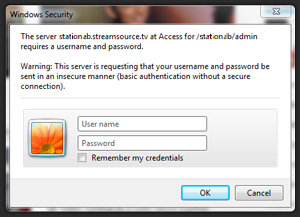 |
Step 2Use the log in information that was defined during your account setup. Once you are logged in you will see the StreamSource Administration Page. From here choose .CSV upload from the list of options. You should now see the .CSV upload page: |
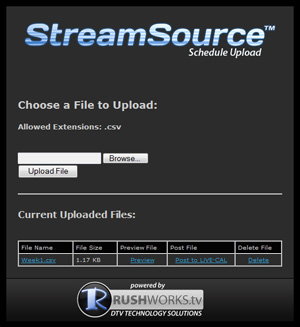 |
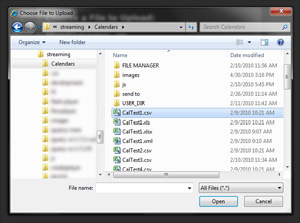
Step 3Once your schedule is saved as a .CSV file click the "Browse" button and select the file from the location it was saved. Click "Open" and then "Upload File". |
 |
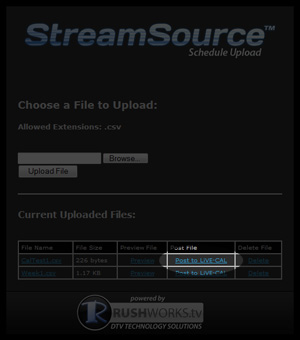
Step 4Once the file is uploaded and appears in the list you can now preview how it will look as a table, post it to your calendar page, or delete it by clicking the corresponding link next to the file name. Also, clicking on the file name will allow you to download it in case you need to make changes from another location. |
 |
Please email support@rushworks.tv with any questions.
